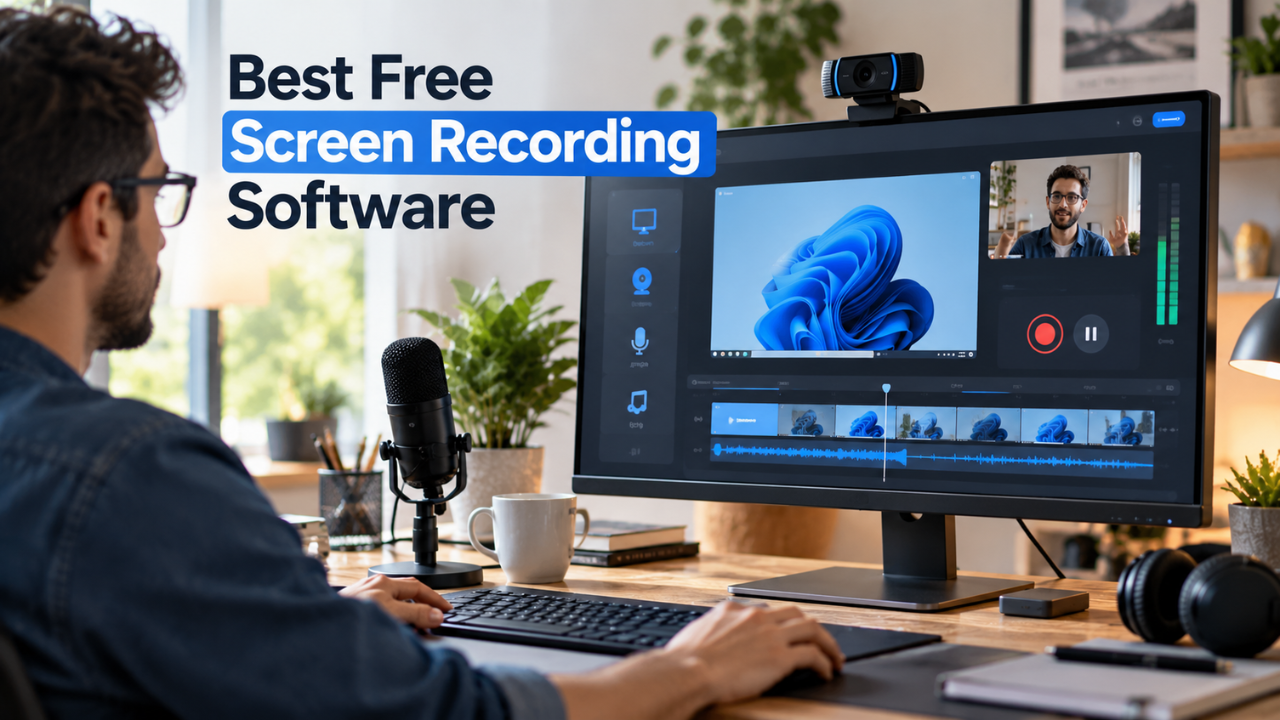
Need to record your screen without paying for expensive software? You have more options than you might expect.
The tricky part is that free screen recording software can come with very different conditions. Some tools are genuinely free with no watermark or recording cap. Others are free but limit each video to a few minutes, restrict cloud storage, or reserve advanced editing for paid plans.
For a quick Windows clip, a built-in tool may be all you need. For a YouTube tutorial, you may want screen capture, webcam, microphone, system audio, and editing in one workflow. And if you are recording a long presentation, a five-minute limit can make an otherwise excellent recorder practically useless.
This guide compares the best free screen recording software available in 2026, including OBS Studio, Loom, ScreenPal, ShareX, Clipchamp, Xbox Game Bar, QuickTime Player, Snipping Tool, and Zight. The focus is on what each tool actually does, where its free version fits, and which type of user should choose it.
What Is Screen Recording Software?
Screen recording software captures activity on your computer display and saves it as a video or prepares it for sharing.
Unlike a screenshot, which gives you a single still image, a screen recording shows what happens over time. Depending on the tool, you can record your entire display, a specific application, a browser tab, a selected area, or a combination of several sources.
Screen recording is commonly used for:
- Software tutorials
- YouTube videos
- Online classes
- Presentations
- Product demonstrations
- Training material
- Customer support
- Remote work
- Bug reports
- Gaming
- Educational content
- How-to guides
Many modern recorders can also capture a webcam and microphone. This allows you to create a video where viewers see your screen while your face appears in a small camera window.
The important thing is that screen recorders are not interchangeable. A professional content creator may need advanced audio and video controls, while someone sending a 60-second explanation to a coworker may care more about opening the recorder quickly.
What Makes a Good Free Screen Recorder?
The best free screen recorder is not necessarily the one with the longest feature list. Start with what you actually need to record.
Recording quality
Check the available resolution and frame-rate options.
A basic software tutorial may look perfectly good at standard HD resolution, while gaming footage can benefit from higher frame rates and more control over encoding.
Recording area
A useful recorder should give you some choice over what appears in the video.
Depending on the software, this might include:
- Entire screen
- Selected monitor
- Application window
- Browser tab
- Custom region
Microphone recording
If you plan to explain what is happening on screen, microphone support is essential.
Check whether you can select an external microphone and control its volume separately.
System audio
System audio captures sound produced by your computer rather than your microphone.
This matters for:
- Software demonstrations
- Game recordings
- Video presentations
- Online lessons
- Product demos
Some applications support microphone and system audio independently, while others have more limited audio controls.
Webcam support
A webcam is useful for tutorials, presentations, courses, reactions, and YouTube videos.
For a simple software demonstration, however, you may not need one.
Recording duration
This is one of the biggest differences between free tools.
A five-minute limit may be fine for a quick explanation but unsuitable for a 45-minute lesson. Always check the current free-plan recording limit before choosing a tool for long videos.
Watermarks
A watermark can make a free recorder unsuitable for professional content.
Fortunately, several free options can create clean recordings without adding their own branding.
Editing
Basic editing can save time. Trimming the beginning and end of a recording is often enough for a quick tutorial.
More advanced editing may include:
- Cropping
- Captions
- Overlays
- Transitions
- Audio adjustments
- Annotations
- Picture-in-picture
- Speed changes
Export options
If you want to upload a video to YouTube or edit it elsewhere, local export matters.
Check the available formats, resolution, and whether the free version restricts downloads.
Privacy
Think about where your recording goes.
Local recording is often preferable for sensitive business material, while cloud-based recording can be much more convenient for collaboration and sharing.
Best Free Screen Recording Software
1. OBS Studio — Best Overall Free Screen Recorder
Best for: Advanced users, YouTube creators, tutorials, gaming, presentations, and unrestricted recording
OBS Studio is the strongest overall choice if you want genuinely free screen recording without a fixed recording limit.
It is free and open-source software for Windows, macOS, and Linux. OBS lets you build scenes using different sources, including windows, browser windows, webcams, images, text, and capture devices. It also provides an audio mixer with per-source controls and audio filters.
The biggest advantage is control.
You can create a recording layout containing your screen, webcam, microphone, additional images, and other sources. You can then switch between scenes when needed.
OBS also does not add a watermark and does not impose a fixed recording limitation.
Key features
- Full-screen recording
- Window capture
- Custom capture sources
- Webcam recording
- Microphone recording
- System and application audio workflows
- Multiple scenes
- Audio mixer
- Audio filters
- Windows, macOS, and Linux support
- Local recording
- Streaming capabilities
Advantages
- Completely free
- Open source
- No watermark
- No fixed recording time limit
- Excellent control
- Suitable for advanced workflows
- Cross-platform
Limitations
The main problem is the learning curve.
OBS exposes many settings that beginners do not necessarily understand at first. Scenes, sources, encoders, audio tracks, and output settings can seem overwhelming if all you want is a quick recording.
OBS also focuses on recording and streaming rather than functioning as a complete video editor.
Choose OBS if: you want maximum control and expect to make recordings regularly.
Choose another option if: you want to press record immediately with almost no configuration.
2. Loom — Best for Quick Tutorials and Sharing
Best for: Beginners, remote work, quick tutorials, presentations, and asynchronous communication
Loom is designed around speed.
Instead of giving you a complicated recording studio, it makes it easy to capture your screen, webcam, or both and share the resulting video.
Its current free Starter plan includes up to 25 videos per person and limits screen recordings to five minutes per video. Free recording quality goes up to 720p, and the plan supports screen-and-camera recording and system audio.
Loom also offers watermark-free screen recording on its free offering.
Key features
- Screen recording
- Webcam recording
- Screen-and-camera recording
- Microphone support
- System audio
- Browser and desktop workflows
- Online sharing
- Basic editing
- Comments and reactions
- Privacy controls
Advantages
- Very easy to use
- Excellent for beginners
- Fast sharing
- Good for remote work
- Screen and webcam together
- No watermark
- Useful for tutorials
Limitations
The five-minute limit is the major restriction.
The free plan also limits the number of recordings per person, so Loom is better for short communication videos than for producing unlimited long-form content.
Choose Loom if: you want to record and share short explanations quickly.
Choose something else if: you need long, unrestricted recordings.
3. ScreenPal — Best Free Screen Recording and Editing Tool
Best for: Tutorials, education, demonstrations, and users who want editing included
ScreenPal is one of the more useful choices when recording is only half the job.
Its free recorder can capture your screen, webcam, or both. You can record a selected area, window, or full screen and add narration.
The current free plan allows unlimited recordings of up to 15 minutes each. It also provides basic editing and local saving.
ScreenPal can save recordings locally in formats including MP4, AVI, FLV, and GIF, depending on the workflow and settings.
Key features
- Screen recording
- Webcam recording
- Screen plus webcam
- Microphone narration
- Custom recording areas
- Basic editing
- Trimming
- Annotations
- Captions support
- Local export
- Online hosting
- Unlimited recordings
Advantages
- Easier than OBS
- Recording and editing in one ecosystem
- Unlimited number of free recordings
- No watermark on the free video editor
- Webcam support
- Local saving
- Useful for education and tutorials
Limitations
The free recorder limits each recording to 15 minutes.
That is generous for short tutorials but still restrictive for long classes, webinars, or lengthy presentations.
Some advanced editing and AI features are also reserved for paid plans.
Choose ScreenPal if: you want recording plus basic editing without learning a complicated production suite.
4. ShareX — Best Free Screen Recorder for Windows Power Users
Best for: Windows users, screenshots, short recordings, GIFs, and automation
ShareX is different from many screen recording applications because it is primarily a powerful screen-capture utility that also supports recording.
It is free and open source and combines screenshots, screen recording, GIF capture, annotations, uploads, and automated workflows.
This makes it particularly useful for developers, support teams, designers, and technical users who capture their screen frequently.
Key features
- Screen recording
- Region capture
- GIF recording
- Screenshots
- Image annotation
- Upload workflows
- Automation
- Customizable actions
- Windows support
Advantages
- Free
- Open source
- No watermark
- Lightweight
- Powerful automation
- Excellent screenshot tools
- Great for Windows power users
Limitations
ShareX is not the most beginner-friendly screen recorder.
Its interface and configuration options can feel technical, and it is primarily designed for Windows.
It is also not the best choice if your priority is polished video editing.
Choose ShareX if: you want a powerful Windows capture tool rather than a traditional video-production application.
5. Microsoft Clipchamp — Best for Recording and Editing on Windows
Best for: Windows users who want screen recording followed by video editing
Clipchamp is particularly useful because it combines screen recording with a full video-editing workflow.
You can record a browser tab, application window, or screen and combine screen footage with webcam content. Microphone recording is also supported.
The free video editor allows unlimited video projects and exports up to 1080p without adding a Clipchamp watermark.
That makes it a strong choice for people who want to record a tutorial and then immediately trim mistakes, add captions, adjust audio, or prepare the video for publishing.
Advantages
- Free plan
- Up to 1080p export
- No watermark
- Screen recording
- Webcam recording
- Microphone support
- Built-in video editing
- Windows integration
- Browser-based access
Limitations
Clipchamp is not as flexible as OBS for advanced recording configurations.
System-audio behavior can also depend on what you are recording. Browser-tab recording provides more specific audio options than every possible capture scenario.
Choose Clipchamp if: recording and editing in the same application matters to you.
6. Xbox Game Bar — Best for Quick Windows Game and App Recording
Best for: Gaming and quick application recordings on Windows
Xbox Game Bar is built into Windows and is one of the easiest ways to capture a game or supported application without installing another screen recorder.
It can capture video and system audio and allows microphone recording to be toggled during capture.
This makes it particularly convenient for gaming clips and quick demonstrations.
Advantages
- Built into Windows
- No separate installation
- Easy to start
- Microphone support
- System audio
- Useful for gaming
- Simple workflow
Limitations
Game Bar is not intended to replace a full video-production application.
It is less suitable if you need:
- Multiple scenes
- Complex layouts
- Advanced audio mixing
- Detailed webcam positioning
- Extensive editing
- Professional recording controls
Choose Game Bar if: you want a fast Windows recorder for games or applications.
7. QuickTime Player — Best Simple Screen Recorder for Mac
Best for: Basic Mac screen recording
Mac users already have a capable screen-recording option built into macOS.
Apple’s current screen-recording workflow uses the Screenshot app on modern macOS versions, while QuickTime Player can open the same screen-recording controls through File > New Screen Recording.
You can record the entire screen or a selected portion and choose microphone options when appropriate.
Advantages
- Built into macOS
- No separate installation
- Very simple
- Good for troubleshooting
- Useful for demonstrations
- Can record selected screen areas
- Supports microphone recording
Limitations
QuickTime is intentionally basic.
It does not offer the sophisticated scenes, audio mixing, source management, and production controls available in OBS.
That is not necessarily a disadvantage. If you only need to record your Mac screen occasionally, simplicity may be exactly what you want.
Choose QuickTime/Screenshot if: you need straightforward Mac screen capture.
8. Windows Snipping Tool — Best for Short Windows Clips
Best for: Short screen recordings without installing another recorder
Windows 11’s Snipping Tool is no longer limited to screenshots. It also includes a video-recording function that lets you select an area of the screen and capture a clip.
Microsoft provides a keyboard shortcut for opening the recording overlay, and recordings can be saved as MP4 files.
This is particularly useful when you need to demonstrate one small area of your screen rather than record an entire desktop.
Advantages
- Built into Windows 11
- Very simple
- No separate installation
- Custom recording area
- Good for short clips
- Easy sharing
- Can open recordings in Clipchamp for further editing
Limitations
It is designed for straightforward clips rather than full production.
If you need advanced webcam layouts, extensive audio controls, multiple scenes, or long-form content creation, use OBS or another dedicated recorder instead.
Choose Snipping Tool if: you need a quick Windows screen clip and nothing complicated.
9. Zight — Best for Quick Screen-and-Camera Sharing
Best for: Remote work, support, documentation, and quick visual explanations
Zight focuses heavily on recording something and sharing it quickly.
Its free Share plan allows screen recording, video requests, screenshots, and short GIFs. The current free plan limits individual recordings to five minutes and provides 1 GB of storage.
Zight can capture your full screen, a region, your camera, or the screen and camera together.
Advantages
- Easy to use
- Screen recording
- Camera recording
- Screen and camera together
- Windows and Mac
- Chrome support
- Quick sharing
- Screenshot tools
- GIF creation
Limitations
The five-minute recording limit makes it less suitable for long tutorials.
The free plan is much better suited to quick work communication than full-scale video production.
Choose Zight if: you regularly need to explain something visually to a coworker, customer, or client.
Quick Comparison Table
| Software | Best For | Windows | Mac | Webcam | Audio | Watermark | Free Limitations |
|---|---|---|---|---|---|---|---|
| OBS Studio | Advanced recording | Yes | Yes | Yes | Advanced | No | Steeper learning curve |
| Loom | Quick tutorials | Yes | Yes | Yes | Mic + system audio | No | 5 min/video, 25 videos/person |
| ScreenPal | Recording + editing | Yes | Yes | Yes | Narration/audio | No | 15 min/recording |
| ShareX | Windows power users | Yes | No | Limited | Configurable | No | Windows-focused |
| Clipchamp | Recording + editing | Yes | Yes/browser | Yes | Mic; system audio varies | No | Some advanced features require paid access |
| Xbox Game Bar | Gaming/app capture | Yes | No | Limited | System + mic | No | Primarily Windows games/apps |
| QuickTime/Screenshot | Basic Mac recording | No | Yes | Basic | Mic | No | Limited advanced controls |
| Snipping Tool | Short Windows clips | Yes | No | No | Basic workflow | No | Designed for short/simple clips |
| Zight | Quick sharing | Yes | Yes | Yes | Recording audio | No | 5 min/video on free plan |
Free-plan details can change, particularly for cloud-based services. Check the current plan before relying on a particular limit for an important project.
Best Free Screen Recorder With No Watermark
If you specifically want a free screen recorder without a watermark, the choice becomes easier.
Best overall: OBS Studio
OBS is the strongest option when you want a genuinely free recorder with no watermark and no fixed recording limit.
Best for quick sharing: Loom
Loom provides watermark-free recording but its free plan limits screen recordings to five minutes per video.
Best recording and editing combination: ScreenPal
ScreenPal’s free editor does not add a watermark, while the free recorder limits each recording to 15 minutes.
Best Windows utility: ShareX
ShareX is a strong choice for Windows users who want local screen capture without a watermark.
Best Windows editing workflow: Clipchamp
Clipchamp’s free exports do not add a Clipchamp watermark and can reach 1080p.
The important point is that no watermark does not automatically mean no limitations. A recorder can produce a clean video while still restricting duration, storage, editing features, or sharing.
Best Free Screen Recorder for Windows
Windows users have the widest range of options.
For advanced recording: OBS Studio
Use OBS if you need multiple sources, webcam layouts, audio control, long recordings, or YouTube production.
For quick clips: Snipping Tool
If you only need to record a small area of your screen, Windows 11’s Snipping Tool is much simpler.
For gaming: Xbox Game Bar
Game Bar is convenient when the objective is capturing gameplay or a supported application.
For screenshots and recording: ShareX
ShareX is especially useful for technical users who frequently switch between screenshots, recordings, GIFs, annotations, and automated workflows.
For recording plus editing: Clipchamp
Clipchamp is the more natural choice if you want to turn a raw screen recording into a finished video immediately afterward.
Best Free Screen Recorder for Mac
Mac users have two especially sensible starting points.
QuickTime Player/Screenshot
For simple screen capture, start with the tools already included with macOS.
Modern Mac versions provide screen recording through Screenshot, while QuickTime Player can launch the recording interface.
OBS Studio
If you need advanced recording, OBS is the better choice.
It supports multiple sources, webcams, audio controls, scenes, and more sophisticated recording workflows.
Loom
If your main objective is to record a short explanation and share it with someone, Loom can be easier than either of those options.
The right choice depends on whether you prioritize simplicity, control, or sharing.
Best Free Screen Recorder With Audio
Before choosing a recorder, decide which type of audio you actually need.
Microphone
Microphone audio records your voice.
This is essential for:
- Tutorials
- Presentations
- Online classes
- Training
- YouTube narration
- Client demonstrations
System audio
System audio records sounds produced by your computer.
This is useful for:
- Gaming
- Software demonstrations
- Video playback
- Presentations
- Online lessons
Both together
For professional tutorials, you may want your voice and the computer’s audio simultaneously.
OBS provides the most flexible audio setup among the tools in this guide.
Loom supports system audio and microphone workflows on its free plan.
Xbox Game Bar supports system audio and microphone recording.
ScreenPal supports audio narration and screen recording, although its free workflow is more limited than OBS for advanced audio production.
If audio matters, make a 10-second test before starting a 30-minute recording. A silent video is much harder to fix afterward.
Best Free Screen Recorder With Webcam
For screen-and-webcam recording, OBS Studio, Loom, ScreenPal, and Clipchamp are the strongest choices here.
OBS Studio
Best when you want complete control over camera size, position, scenes, and audio.
Loom
Best when you want a simple camera bubble beside your screen.
ScreenPal
Best when you want recording and basic editing together.
Clipchamp
Best when you want to record the screen and webcam and then edit the resulting video.
For a basic tutorial, all four can work. Your decision should come down to whether you care most about simplicity, control, or editing.
Best Free Screen Recorder for YouTube and Tutorials
For serious YouTube tutorials, OBS Studio is the strongest free starting point.
It gives you enough control to create a repeatable setup for:
- Software tutorials
- Product demonstrations
- Gaming
- Coding videos
- Educational content
- Webcam presentations
If you want editing included, ScreenPal and Clipchamp are easier alternatives.
Loom is particularly good for short instructional videos, but the free five-minute screen-recording limit makes it less suitable for longer YouTube tutorials.
A useful workflow is to record clean footage first and then edit it separately. This gives you more control over pacing, mistakes, audio, captions, and visual presentation.
Best Free Screen Recorder for Beginners
Beginners should not automatically choose the most powerful application.
Easiest for short explanations: Loom
Its interface is designed around getting from “I need to record something” to “I have a shareable video” quickly.
Easiest Windows option: Snipping Tool
There is very little to configure for a basic screen clip.
Easiest Mac option: QuickTime/Screenshot
You can use software already included with macOS.
Easiest recording + editing option: Clipchamp
It gives beginners a path from recording to editing without requiring the more technical configuration found in OBS.
Most powerful after learning: OBS Studio
OBS has the highest learning curve among these choices, but that investment pays off if you plan to create recordings regularly.
Free Screen Recorder vs Paid Screen Recording Software
Free software is already enough for many people.
You do not need to pay simply because a product has a premium version.
Free software can handle:
- Tutorials
- Screen demonstrations
- Presentations
- Training videos
- Gaming clips
- Bug reports
- Remote-work explanations
- Educational recordings
Paid software becomes more attractive when you need specific features such as longer cloud recordings, advanced editing, collaboration, analytics, branding, AI features, premium stock assets, or centralized business management.
The key is to identify the restriction that is actually slowing you down.
For example, if you need 30-minute tutorials and your chosen free tool stops at five minutes, upgrading may make sense. But if OBS already handles your workflow without a subscription, paying for another recorder may add little value.
How to Choose the Right Free Screen Recorder
Use this checklist before downloading anything.
1. Choose your operating system
Start with Windows, macOS, or another platform.
This immediately eliminates tools that do not support your device.
2. Decide what you are recording
A quick software bug and a two-hour gaming session have completely different requirements.
3. Decide whether you need a webcam
If the viewer only needs to see your screen, skip the webcam.
4. Decide which audio you need
Do you need:
- No audio?
- Microphone?
- System audio?
- Both?
5. Check the watermark
Do not assume that every free recorder produces clean footage.
6. Check the recording limit
A five-minute limit can completely change which tool makes sense.
7. Check editing requirements
If you only trim the beginning and end, almost any basic editor may work.
If you need captions, overlays, transitions, and audio editing, choose a tool that supports those functions.
8. Check export requirements
Make sure you can get the finished video into the format and resolution you need.
9. Consider privacy
For confidential work, local recording may be preferable to a cloud-first service.
How to Record Your Screen
The exact controls vary by application, but the overall process is similar.
Step 1: Open the recorder
Launch your desktop application or built-in screen-recording tool.
Step 2: Select the recording area
Choose the entire display, a window, browser tab, or custom region.
Step 3: Configure audio
Select your microphone and enable system audio if the application supports it.
Step 4: Enable your webcam
Turn on your camera if you want a facecam or picture-in-picture presentation.
Step 5: Start recording
Begin the recording and perform the actions you want to show.
Step 6: Stop recording
Use the application’s stop control or keyboard shortcut.
Step 7: Review the video
Check:
- Picture quality
- Microphone volume
- System audio
- Webcam
- Beginning and ending
- File format
Step 8: Edit or export
Remove unnecessary sections and export the finished recording.
Always perform a short test before recording something important.
Common Screen Recording Problems
No microphone audio
Check that the operating system has given the recorder permission to use your microphone.
Then confirm that the correct microphone is selected inside the recording application.
No system audio
System audio can require separate configuration.
Make sure system-audio capture is enabled and that you are not accidentally recording only your microphone.
Webcam not detected
Close applications that may already be using the camera, then check your operating-system camera permissions.
Also confirm that the correct camera is selected in the recorder.
Poor video quality
Check the recording resolution and frame rate.
Higher settings are not always better if your computer cannot maintain them smoothly.
Huge recording files
Higher resolution and frame rates create larger files.
For normal software tutorials, you may not need extremely high settings.
Laggy recording
Screen recording can consume CPU, GPU, memory, and storage bandwidth.
Close unnecessary applications and consider reducing recording settings if your system struggles.
Recording stops unexpectedly
Check whether your free plan has a time limit.
A recording that stops at exactly five or 15 minutes may be hitting the service’s free-plan restriction rather than experiencing a technical failure.
Permission problems
Modern Windows and macOS versions can require separate permissions for screen recording, microphone access, and camera access.
Check the operating system’s privacy settings if the recorder cannot access one of these devices.
Frequently Asked Questions
What is the best free screen recording software?
OBS Studio is the strongest overall option for users who want a genuinely free, watermark-free recorder without a fixed recording limit. Beginners may prefer Loom, Clipchamp, QuickTime, or Snipping Tool because they require less setup.
What is the best free screen recorder without a watermark?
OBS Studio is the strongest choice if you want no watermark and no fixed recording limit. Loom, ScreenPal, ShareX, and Clipchamp also provide watermark-free options, although their free plans have different restrictions.
What is the best free screen recorder for Windows?
OBS Studio is the best general-purpose choice for advanced users. ShareX is excellent for Windows power users, while Snipping Tool is ideal for quick clips and Xbox Game Bar works particularly well for gaming.
What is the best free screen recorder for Mac?
QuickTime Player and the macOS Screenshot tool are the easiest choices for basic recording. OBS Studio is better when you need advanced recording and audio controls.
Can I record my screen with audio for free?
Yes. Several free screen recorders support microphone recording, and some also capture system audio. OBS Studio provides the most flexible audio configuration in this comparison.
Can I record my screen and webcam at the same time?
Yes. OBS Studio, Loom, ScreenPal, and Clipchamp all support screen-and-webcam recording workflows. The exact layout and editing controls differ between applications.
Is OBS Studio completely free?
Yes. OBS Studio is free and open source. It does not require a paid subscription for its core recording and streaming features.
How long can you record your screen for free?
It depends on the application. OBS Studio does not impose a fixed recording duration, while Loom’s free screen recordings are limited to five minutes per video and ScreenPal’s free recorder allows up to 15 minutes per recording.
What is the easiest screen recorder for beginners?
Loom is particularly easy for short tutorials and explanations. Windows users can use Snipping Tool for quick clips, while Mac users can start with Screenshot or QuickTime.
Can I use a free screen recorder for YouTube?
Yes. OBS Studio, ScreenPal, Clipchamp, and other free tools can create videos suitable for YouTube. For longer tutorials, choose a recorder without a short recording limit.
Final Verdict
There is no single best free screen recorder for everyone.
Best overall: OBS Studio
Choose OBS if you want the most control, no watermark, no fixed recording limit, multiple sources, and advanced audio and video capabilities.
Best for Windows: OBS Studio or ShareX
OBS is better for full video production. ShareX is better if you want a powerful Windows capture and automation utility.
Best for Mac: QuickTime Player/Screenshot
For basic recording, the tools already included with macOS are hard to beat for simplicity.
Best without a watermark: OBS Studio
It combines unrestricted recording with a genuinely free and open-source model.
Best for beginners: Loom
Loom is easier to learn and excellent for short recordings, but remember its five-minute free screen-recording limit.
Best for YouTube and tutorials: OBS Studio
It provides the control needed for longer and more structured content.
Best for recording and editing: ScreenPal
ScreenPal is a strong choice if you want to record, make basic edits, and share your video without building a complicated production setup.
Best quick Windows recorder: Snipping Tool
For a short custom screen clip, you may not need to install anything at all.
Best for Windows gaming: Xbox Game Bar
It is convenient when you simply want to capture gameplay or a supported application.
The smartest choice is therefore based on the job rather than the number of features.
If you need a long, watermark-free recording, start with OBS. If you need a five-minute explanation for a coworker, Loom or Zight may be faster. If you want to record and edit, ScreenPal or Clipchamp makes more sense. If you are on a Mac and just need a basic recording, start with the tools already built into macOS.
Free screen recording software is capable enough for most everyday work. The important thing is to choose a tool whose limitations do not get in the way of what you actually need to record.
For more interesting articles visit: Urban Timely