A 70-page research paper can take an entire evening to read carefully. A dense textbook chapter can be even worse when you only need the main ideas before tomorrow’s exam. That is where Best AI PDF Summarizers for Students can save time.
The right tool can turn a long PDF into a usable summary, answer questions about specific sections, find important details, and help you build study notes without replacing the original source.
The catch is that PDF AI tools are not interchangeable. Some are better for research papers, some handle multiple sources well, and others are designed specifically around working directly with PDFs. File limits, visual-PDF support, citations, and free usage also differ significantly.
The Student PDF Problem
Imagine you have a 55-page journal article for a sociology assignment.
You need to know:
- What question the researchers investigated
- How the study was conducted
- The main findings
- Important limitations
- Which results are worth mentioning in your paper
- Where specific information appears in the document
Reading the entire paper is the safest approach, but you may not have an hour available every time you receive a new source.
An AI PDF reader can give you a starting point. Upload the document, ask for a structured summary, then ask targeted questions about methodology, findings, terminology, or specific sections.
That changes the workflow from:
Read everything first → find what matters later
to:
Locate important sections → read them carefully → verify the original source
That last step matters. A summary is an aid to reading, not a replacement for reading important evidence yourself.
What Can AI Actually Do With a PDF?
Modern document AI goes beyond producing a paragraph labeled “Summary.”
Depending on the tool, you can ask an uploaded PDF to help with:
Summarization
A good PDF summarizer can condense a long document into:
- A short overview
- Section-by-section notes
- Main arguments
- Key findings
- Important definitions
- A list of conclusions
- Exam-focused summaries
For studying, ask for the level of detail you actually need.
Instead of:
Summarize this PDF.
Try:
Summarize each section in five bullet points and identify the concepts most likely to matter for an exam.
The second request gives the tool a much clearer job.
Question Answering
Instead of searching manually through dozens of pages, ask questions such as:
What methodology did the researchers use?
Or:
Which limitations did the authors identify?
PDF tools that can connect their answers to the relevant document sections are particularly useful for academic work.
Finding Specific Information
AI PDF tools can help locate:
- Names
- Dates
- Definitions
- Statistics
- Arguments
- Research findings
- Specific concepts
- References to particular topics
This is useful when you remember what you need but not where it appears.
Creating Study Notes
A textbook chapter can be converted into:
- Key concepts
- Important terms
- Short explanations
- Potential exam questions
- Revision notes
You can then turn those notes into flashcards or organize them with other study tools.
Comparing Documents
Some tools can analyze multiple documents together.
This is useful when comparing two research papers, examining different theories, or finding agreements and disagreements between sources.
Explaining Difficult Sections
You can ask an AI tool to explain a complicated paragraph in simpler language.
For example:
Explain this section as if I understand basic biology but have never studied this specific topic.
That can make difficult academic material easier to approach.
For technical subjects, however, compare the explanation with the original text when accuracy matters.
Before You Upload a PDF
Uploading a document is easy. Deciding whether you should upload it requires more thought.
Check Whether You Have Permission
A textbook, paid research paper, class handout, or proprietary document may have restrictions on how it can be uploaded or processed.
If the document belongs to your university or another organization, check its rules before sending it to a third-party service.
Remove Sensitive Information
Don’t casually upload documents containing:
- Student ID numbers
- Home addresses
- Phone numbers
- Private correspondence
- Financial information
- Medical records
- Passwords
- Confidential research
If a document contains information that doesn’t need to be analyzed, remove it first when practical.
Check the PDF Itself
There is a big difference between a text-based PDF and a scanned PDF.
A text PDF contains selectable words that software can extract directly.
A scanned PDF may essentially be a collection of images. In that case, the tool may need OCR or visual processing to understand the content.
Watch Charts and Tables
AI may describe a chart incorrectly or miss a relationship between several columns.
If a number is going into an assignment, check the original figure yourself.
Keep the Original Open
Don’t close the source immediately after generating a summary.
Keep it available so you can verify:
- Important claims
- Quotations
- Statistics
- Page numbers
- Conclusions
- Research findings
The Best Tool Depends on the PDF
There isn’t one perfect choice for every student.
| Need | Strong Options | Why |
|---|---|---|
| Research papers | NotebookLM, SciSpace | Useful for source-based academic reading |
| General PDF questions | ChatGPT, Claude, Gemini | Flexible document conversations |
| Multiple source collections | NotebookLM | Built around source-based notebooks |
| PDF-focused workflow | Adobe Acrobat AI Assistant | Combines PDF tools with AI |
| Simple PDF chat | Humata, AskYourPDF | Built around document conversations |
| Free starting point | NotebookLM, ChatGPT, Gemini | Useful free access |
| Academic literature | SciSpace | Designed around research literature |
| PDF editing + AI | Adobe Acrobat | Combines document tools with AI |
The Best AI PDF Summarizers for Students are therefore better judged by the type of work you need to do rather than by a single overall ranking.
Main Tool Comparison
| Tool | Best For | PDF Analysis | Free Option | Ease of Use |
|---|---|---|---|---|
| ChatGPT | General PDF analysis | Yes | Yes | Very easy |
| Google Gemini | PDFs plus Google ecosystem | Yes | Yes | Very easy |
| Claude | Detailed document analysis | Yes | Yes | Very easy |
| NotebookLM | Source-based studying | Yes | Yes | Easy |
| Adobe Acrobat AI Assistant | Working directly with PDFs | Yes | Limited | Easy |
| Humata | Dedicated PDF conversations | Yes | Yes | Easy |
| SciSpace | Academic research papers | Yes | Limited | Easy |
File limits and usage allowances vary by plan and can change over time, so check the current plan before subscribing.
ChatGPT
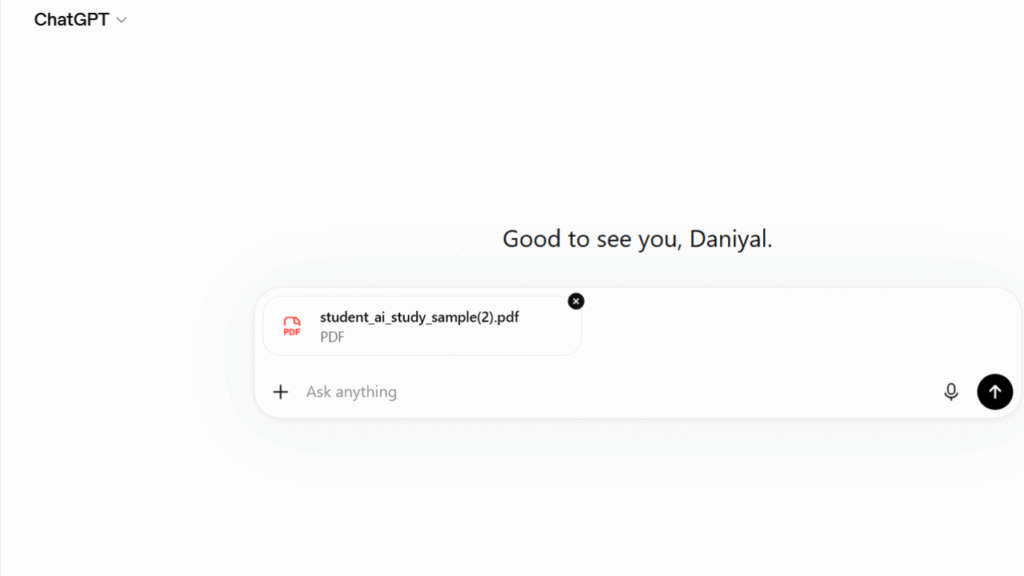
ChatGPT is one of the most flexible choices when you want to upload a PDF and then work with it conversationally.
It supports PDF uploads and can work with documents for tasks such as summarization, explanation, extraction, comparison, and question answering.
What Makes It Useful
You can ask ChatGPT to:
- Summarize a paper
- Extract headings
- Explain difficult passages
- Create study questions
- Compare documents
- Turn material into notes
- Identify major arguments
- Organize information into tables
- Explain technical terminology
The flexibility is its biggest advantage.
You aren’t limited to a fixed “summarize PDF” button.
Free Availability
ChatGPT has a free tier with file-upload functionality, although free users have lower usage limits than paid plans.
Paid plans provide higher limits and additional capabilities.
Best Student Use Case
Suppose you’re reading a 30-page economics paper.
Instead of asking only for a summary, ask:
Give me the research question, methodology, three main findings, two limitations, and the section where each important finding appears.
That produces a much more useful study document.
Limitation
Don’t assume that a confident answer is automatically correct.
Verify important:
- Statistics
- Quotations
- Research findings
- Conclusions
- References
against the PDF.
Best for: Students who want one flexible AI assistant for PDFs, studying, writing, and general coursework.
Google Gemini
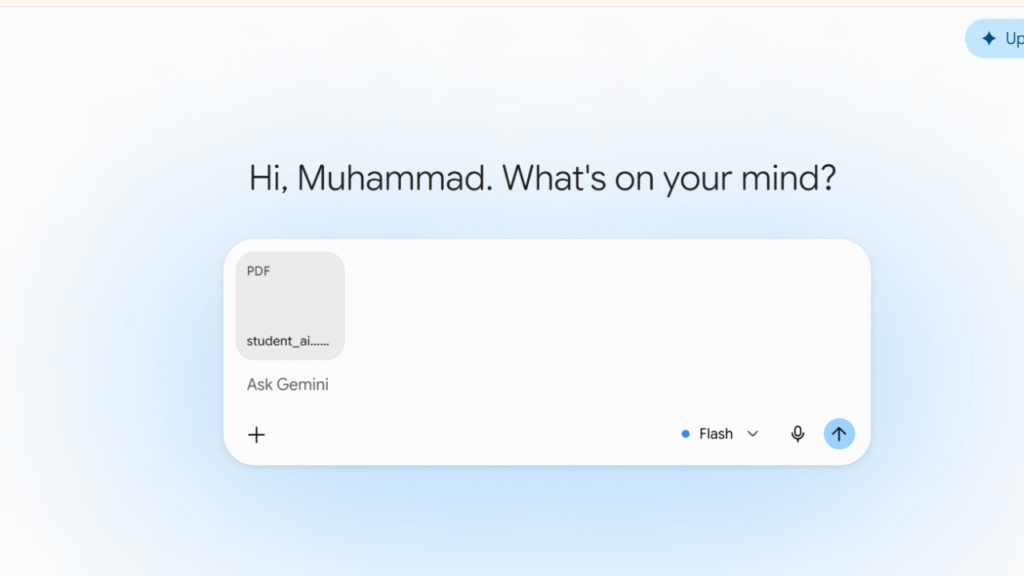
Google Gemini can analyze uploaded documents and PDFs, answer questions, produce summaries, and extract information from files.
It becomes particularly convenient for students who already use Google’s ecosystem.
You can work with:
- PDFs
- Google Drive content
- Google Docs
- Google Slides
- Images
- Other supported files
That makes it useful for projects where research material is already stored in Google Drive.
Why Students May Prefer It
Imagine your professor uploads a 40-page lecture document to Google Drive.
You can work from the document and ask questions about:
- Important concepts
- Definitions
- Exam topics
- Sections you don’t understand
- Key arguments
Free Availability
Gemini provides free access, while paid Google AI plans provide higher limits and additional capabilities.
Best Student Use Case
Upload a lecture PDF and ask:
Create a one-page revision sheet containing the five most important concepts, definitions for each concept, and ten questions I should be able to answer before the exam.
Limitation
For very large documents, don’t assume that every page will receive equal attention.
If the information you need is spread throughout a huge document, ask specific questions and verify important answers against the original.
Best for: Students who already use Google Drive and want PDF analysis alongside Google’s productivity ecosystem.
Claude
Claude is a strong choice for students who want detailed conversations about uploaded documents.
It can analyze PDF text and, in supported circumstances, visual elements such as charts and diagrams.
Claude currently supports files up to 30 MB each and allows multiple files within a conversation. For larger PDFs, its handling of visual content can differ from smaller documents.
What It Does Well
Claude can help with:
- Research-paper summaries
- Detailed explanations
- Section comparisons
- Document-based questions
- Extracting arguments
- Reorganizing information
- Explaining technical material
Free Availability
Claude offers a free plan.
Claude Pro is available as a paid subscription for users who need higher limits and additional access.
Best Student Use Case
A student studying a scientific paper can ask:
Explain the paper’s methodology in plain English, then identify which figures are most important for understanding the results.
Limitation
File-size and document-length limits matter.
A very large PDF may need to be divided into smaller sections for the best results.
Best for: Students who want detailed conversational analysis of academic documents.
NotebookLM
NotebookLM takes a different approach from a normal chatbot.
Instead of treating a PDF as a one-off attachment, you build a notebook around your sources.
You can add PDFs and other supported materials, then use those sources as the basis for questions, summaries, study material, and research workflows.
Why It Stands Out for Studying
NotebookLM is particularly useful when an assignment involves multiple sources.
For example:
- Three journal papers
- One textbook chapter
- A professor’s PDF
- Your lecture notes
Instead of opening five separate AI conversations, put them into one notebook and ask questions across the source collection.
NotebookLM is also designed around source-grounded responses, which makes it useful when you want to distinguish information from your uploaded materials from general AI knowledge.
Free Availability
NotebookLM provides standard free access with source and usage limits. Paid Google AI plans increase available limits.
Important PDF Limitation
Some complex visual content inside imported sources may not be carried into the notebook in the same way as the document’s text.
A visually complex or scanned PDF may therefore behave differently from a clean text-based PDF.
Best Student Use Case
Imagine you have six research papers for a literature review.
You can ask:
Compare the main conclusions of all six papers and identify where the researchers disagree.
That’s much more useful than summarizing each paper separately.
Best for: Research-heavy students managing several sources at once.
Adobe Acrobat AI Assistant
Adobe Acrobat AI Assistant is a strong option when your work is already centered around PDFs.
It can summarize documents, answer questions, and help users navigate information within a PDF.
The major advantage is that AI features are combined with traditional PDF functions.
PDF Features
Acrobat can handle tasks such as:
- PDF editing
- OCR
- Conversion
- Organization
- Compression
- Sharing
- Document management
- AI-assisted analysis
That makes it different from a general chatbot.
Free Availability
Adobe provides limited access to AI features, while paid Acrobat plans provide broader functionality.
Best Student Use Case
A student receives a scanned class handout and needs to make the document searchable before analyzing it.
A PDF-focused workflow can be more convenient in this situation than moving between several separate applications.
Limitation
If all you need is a five-paragraph summary of a text-based PDF, a general AI assistant may be simpler.
Best for: Students who frequently edit, convert, organize, OCR, and analyze PDFs.
Humata
Humata is designed specifically around interacting with documents.
The main workflow is straightforward:
Upload document → ask questions → analyze answers → continue the conversation
It can help with:
- PDF summaries
- Document questions
- Information extraction
- Research workflows
- Understanding long documents
Free Availability
Humata provides free access with usage limits, while paid plans increase available document usage.
Its paid structure is particularly relevant for students who regularly work with large numbers of pages.
Best Student Use Case
Upload a research paper and ask:
List the paper’s hypothesis, methodology, results, limitations, and conclusion.
Then ask follow-up questions about each section.
Limitation
Free usage is limited, so students working through large research libraries may reach those limits quickly.
Best for: Students who want a dedicated PDF-chat experience without setting up a full research platform.
SciSpace
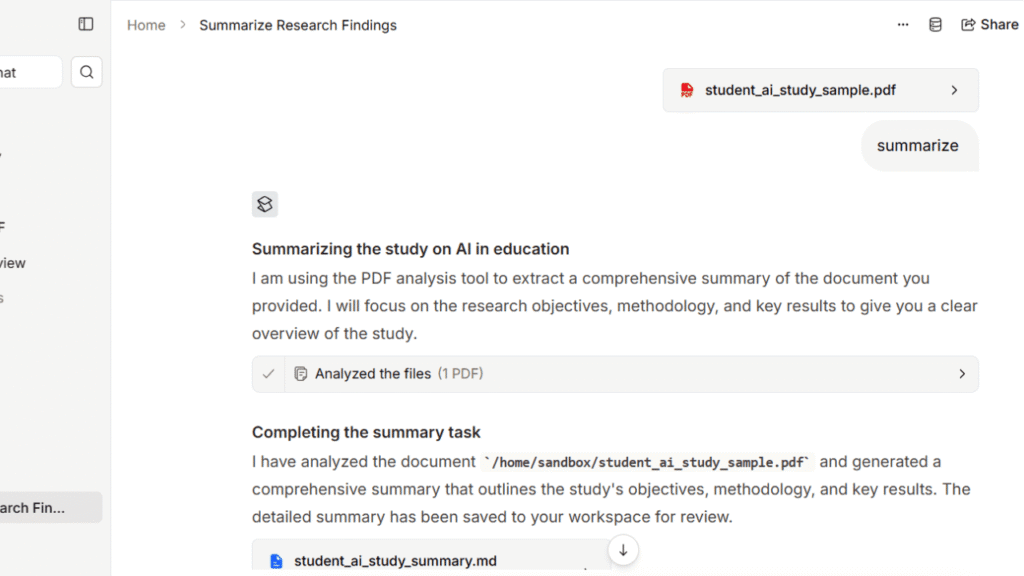
SciSpace is focused heavily on academic and scientific literature.
Its platform includes tools for discovering, analyzing, and working with research papers, including PDF conversations.
That makes it different from a general-purpose chatbot.
Where It Fits
SciSpace is useful when the PDF itself is part of a larger research workflow:
Find paper → understand paper → analyze paper → organize research → write
It can be especially useful for students reading journal articles where terminology, methodology, and findings are difficult to understand.
Free Availability
SciSpace offers access to selected features for free, with paid plans available for additional research capabilities.
Best Student Use Case
A student working on a literature review can use a research paper PDF as the starting point and ask questions about:
- Research methodology
- Key findings
- Limitations
- Definitions
- Related concepts
Best for: Students dealing primarily with academic and scientific papers.
Feature Comparison
| Feature | ChatGPT | Gemini | Claude | NotebookLM | Acrobat AI | Humata | SciSpace |
|---|---|---|---|---|---|---|---|
| PDF Summaries | ✓ | ✓ | ✓ | ✓ | ✓ | ✓ | ✓ |
| PDF Questions | ✓ | ✓ | ✓ | ✓ | ✓ | ✓ | ✓ |
| Multiple Sources | ✓ | ✓ | ✓ | ✓ | ✓ | ✓ | ✓ |
| Research Focus | Good | Good | Good | Excellent | Moderate | Good | Excellent |
| Study Notes | ✓ | ✓ | ✓ | ✓ | ✓ | ✓ | ✓ |
| Document Comparison | ✓ | ✓ | ✓ | ✓ | ✓ | ✓ | ✓ |
| OCR/PDF Tools | Limited | Limited | Limited | Limited | Excellent | Limited | Limited |
| Academic Focus | Moderate | Moderate | Moderate | High | Moderate | Moderate | High |
Pricing and Free Plan Comparison
| Tool | Free Access | Paid Option | Main Consideration |
|---|---|---|---|
| ChatGPT | Yes | Paid plans available | Higher usage limits |
| Google Gemini | Yes | Google AI plans | Higher limits and capabilities |
| Claude | Yes | Pro plan available | Higher usage limits |
| NotebookLM | Yes | Higher limits with Google AI plans | Strong source-based workflow |
| Adobe Acrobat AI | Limited | Paid Acrobat plans | PDF tools plus AI |
| Humata | Yes | Paid plans available | Usage/page limits |
| SciSpace | Limited/free features | Premium plans | Academic research focus |
Pricing and usage allowances can change, so students should check the current plan before purchasing.
Real Study Workflows
The Best AI PDF Summarizers for Students become much more useful when you stop treating them as “summarize this” machines.
Workflow 1: Research Paper
Research paper
↓
Upload PDF
↓
Generate structured summary
↓
Ask questions about methodology
↓
Identify important findings
↓
Check the original sections
↓
Create research notes
↓
Write your assignment
Students who are still collecting academic sources can use Best AI Research Tools for Students before moving into the PDF-analysis stage.
The key is verification.
If an AI says a study found something significant, locate that statement in the original paper before using it.
Workflow 2: Textbook Chapter
Start with a chapter rather than the entire textbook when possible.
Ask the tool to identify:
- Five major concepts
- Important terminology
- Processes or formulas
- Relationships between concepts
- Potential exam questions
Then ask:
Explain the three concepts I am least likely to understand, using examples from the PDF.
This creates a much better study session than simply copying a generated summary.
Workflow 3: Lecture PDF
A professor’s slide deck can become a study guide.
Lecture PDF
↓
Summary
↓
Important terminology
↓
Unclear concepts
↓
Practice questions
↓
Revision notes
↓
Flashcards
If you want to take that final step, our guide to Best AI Flashcard Generators for Students covers tools designed to turn study material into reusable flashcards.
Workflow 4: Research Notes to Assignment
A PDF summarizer can also fit into the writing process.
Research PDF
↓
Extract important findings
↓
Verify source
↓
Create your own notes
↓
Build outline
↓
Write assignment
↓
Proofread
When your research notes are ready and you need help with the writing stage, Best AI Writing Tools for Students can help you compare tools for drafting and improving academic writing.
The important distinction is that the PDF tool helps you understand the source; it should not automatically become the final wording of your assignment.
PDF Summarizer vs. Normal AI Chatbot
The difference is less about the word “AI” and more about workflow.
| Type | Best Use | Main Advantage | Main Weakness |
|---|---|---|---|
| Dedicated PDF tool | Working directly with documents | PDF-focused interface | May have tighter limits |
| General AI chatbot | Flexible study tasks | Can summarize, explain, and write | Less document-specific |
| Research platform | Academic papers | Research-oriented workflow | More specialized |
| PDF editor with AI | PDF management + analysis | Editing and AI together | Can cost more |
A student writing one short assignment may be perfectly happy with a general chatbot.
Someone reading 20 academic papers may benefit more from a research-oriented platform.
Someone who constantly edits, OCRs, converts, and organizes PDFs may prefer Acrobat.
The right choice depends on what happens before and after the summary.
Limitations Students Should Know
AI PDF analysis is useful, but it has predictable failure points.
Hallucinations
An AI may generate an answer that sounds reasonable but isn’t actually supported by the document.
Never treat an AI-generated claim as a quotation from the source unless you verify it.
Missing Context
A short summary can remove qualifications that completely change the meaning of a finding.
Academic papers often contain careful wording such as “may,” “suggests,” or “was associated with.”
A simplified summary can accidentally make those findings sound stronger than the original paper.
Scanned PDFs
If a document is primarily made of scanned images, the tool may need OCR or visual processing to understand it properly.
Tables and Charts
AI may miss information hidden inside:
- Complex tables
- Figure legends
- Footnotes
- Graphs
- Small labels
- Multi-column layouts
Check important numerical information manually.
Long Documents
A tool may technically accept a large file while still producing weaker answers when information is spread across hundreds of pages.
If you’re dealing with a huge textbook or research collection, divide it into meaningful sections when necessary.
Citations
A PDF summary is not automatically an academic citation.
If you use a fact in your paper, verify the:
- Original author
- Publication details
- Page number
- DOI
- URL
- Required citation style
If you need dedicated tools for references, our Best AI Citation Generators for Students guide covers citation and bibliography workflows.
Privacy
Uploading a document means sending it to a service for processing.
Before uploading confidential material, review the provider’s current privacy and data-handling options.
Best Options by Study Need
| Student Need | Recommended Options | Why |
|---|---|---|
| Research papers | NotebookLM, SciSpace | Strong academic-source workflows |
| Textbooks | ChatGPT, Claude, NotebookLM | Flexible explanations and summaries |
| Exam preparation | NotebookLM, ChatGPT, Gemini | Good for summaries and questions |
| Lecture materials | Gemini, ChatGPT, NotebookLM | Convenient document analysis |
| Free users | NotebookLM, ChatGPT, Gemini | Useful free access |
| Long PDFs | NotebookLM, ChatGPT | Strong document workflows |
| Academic research | SciSpace, NotebookLM | Research-oriented workflows |
| PDF editing + AI | Adobe Acrobat | Combines editing and analysis |
| Quick PDF chat | Humata | Simple document interaction |
These recommendations are based on use case, not a claim that one service produces the most accurate answer in every subject.
A 10-Minute PDF Study Method
You don’t need to spend an hour prompting an AI.
Try this seven-step method.
1. Upload
Use the original PDF rather than a screenshot whenever possible.
2. Summarize
Ask for a short overview first.
Don’t start with an enormous prompt.
3. Ask Questions
Ask five specific questions about the material.
For example:
- What is the author’s main argument?
- What evidence supports it?
- What methodology was used?
- What are the main limitations?
- What should I remember for an exam?
4. Identify Important Sections
Find the pages or sections connected to the questions you actually need to answer.
5. Create Notes
Turn verified information into your own notes.
Don’t simply paste the AI’s paragraphs into your assignment.
6. Verify
Open the original PDF and check:
- Important facts
- Numbers
- Quotations
- Conclusions
- Research findings
7. Review
Close the AI tool and test yourself.
Can you explain the paper without looking at the summary?
If not, you haven’t finished studying.
Common Questions About AI PDF Summarizers
Are AI PDF summarizers accurate?
They can be useful, but accuracy depends on the document, model, formatting, and question.
Important academic claims should always be checked against the original PDF.
Can AI summarize a 100-page PDF?
Yes, several tools can handle documents around that size, but their limits and processing methods differ.
For large files, asking questions about specific sections can produce more useful results than requesting one massive summary.
Can I use an AI PDF summary in my assignment?
You can use a summary as a study aid, but you should follow your instructor’s AI policy.
Don’t submit generated text as your own work when your course prohibits it.
Can AI summarize scanned PDFs?
Sometimes.
Results depend on whether the service can recognize the scanned text. OCR capability can make a major difference.
Which AI PDF tool is best for research papers?
NotebookLM and SciSpace are strong choices for research-heavy work because they are designed around source analysis rather than only producing a generic summary.
Can AI answer questions about a PDF?
Yes.
ChatGPT, Gemini, Claude, NotebookLM, Acrobat AI Assistant, Humata, and SciSpace all support document-based questioning in their respective workflows.
Can AI read charts inside PDFs?
Some tools can analyze visual PDF content, but the reliability of chart interpretation varies.
When a chart contains information you plan to use in an assignment, check the original figure carefully.
Is NotebookLM free for students?
NotebookLM provides standard free access with limits on sources, notebooks, and usage. Paid Google AI plans provide higher limits.
Does ChatGPT support PDF uploads?
Yes.
PDF is a supported document format. File and usage limits depend on the ChatGPT plan you use.
Can Gemini summarize multiple PDFs?
Yes.
Gemini can work with multiple uploaded files within supported usage limits, making it useful for comparing documents or analyzing a group of related materials.
Can Adobe Acrobat AI Assistant summarize PDFs?
Yes.
Acrobat AI Assistant can summarize PDFs and answer questions about document contents while working inside the Acrobat environment.
Should I upload my entire textbook?
Usually, no.
Start with the chapter or sections relevant to your assignment.
Smaller, focused documents can make it easier to ask precise questions and verify answers.
Can an AI PDF summarizer replace reading a research paper?
No.
It can help you locate and understand important information faster, but you should read the original sections that support claims you intend to use.
Can AI make citations from a PDF?
It can help extract bibliographic information, but citation details should be checked against the original source.
If your assignment requires references, use a dedicated citation tool and verify the final result.
What should I do if the AI summary looks wrong?
Go back to the original PDF.
Locate the relevant passage, table, or figure and compare it directly with the AI’s answer.
If necessary, upload a smaller section and ask a narrower question.
Final Recommendations
The Best AI PDF Summarizers for Students depend heavily on what you’re studying and how you work.
Choose ChatGPT if you want a flexible PDF assistant that can also help with explanations, notes, questions, writing, and other coursework.
Choose Gemini if you already work heavily with Google Drive and want document analysis alongside Google’s productivity ecosystem.
Choose Claude when detailed document conversations and visual PDF analysis are important.
Choose NotebookLM if your work involves multiple research papers, lecture documents, and other sources that need to stay organized together.
Choose Adobe Acrobat AI Assistant if PDF editing, OCR, conversion, organization, and AI analysis all belong to the same workflow.
Choose Humata if you want a straightforward service focused specifically on chatting with documents.
Choose SciSpace if academic and scientific research papers make up most of your reading.
The best workflow isn’t simply:
Upload → Summarize → Copy
It is:
Upload → Summarize → Question → Locate → Verify → Make your own notes → Study
That approach saves time without turning the AI summary into a substitute for actually understanding the material.
For students, that is the real value of the Best AI PDF Summarizers for Students: they can reduce the time spent searching through long documents while leaving the important work—understanding, checking, and learning the material—in your hands.